How I made Minecraft run 2.5 times better
I use EndeavourOS on a laptop with an Nvidia GPU, and recently I decided to install Minecraft.
Standard Edition with OpenGL
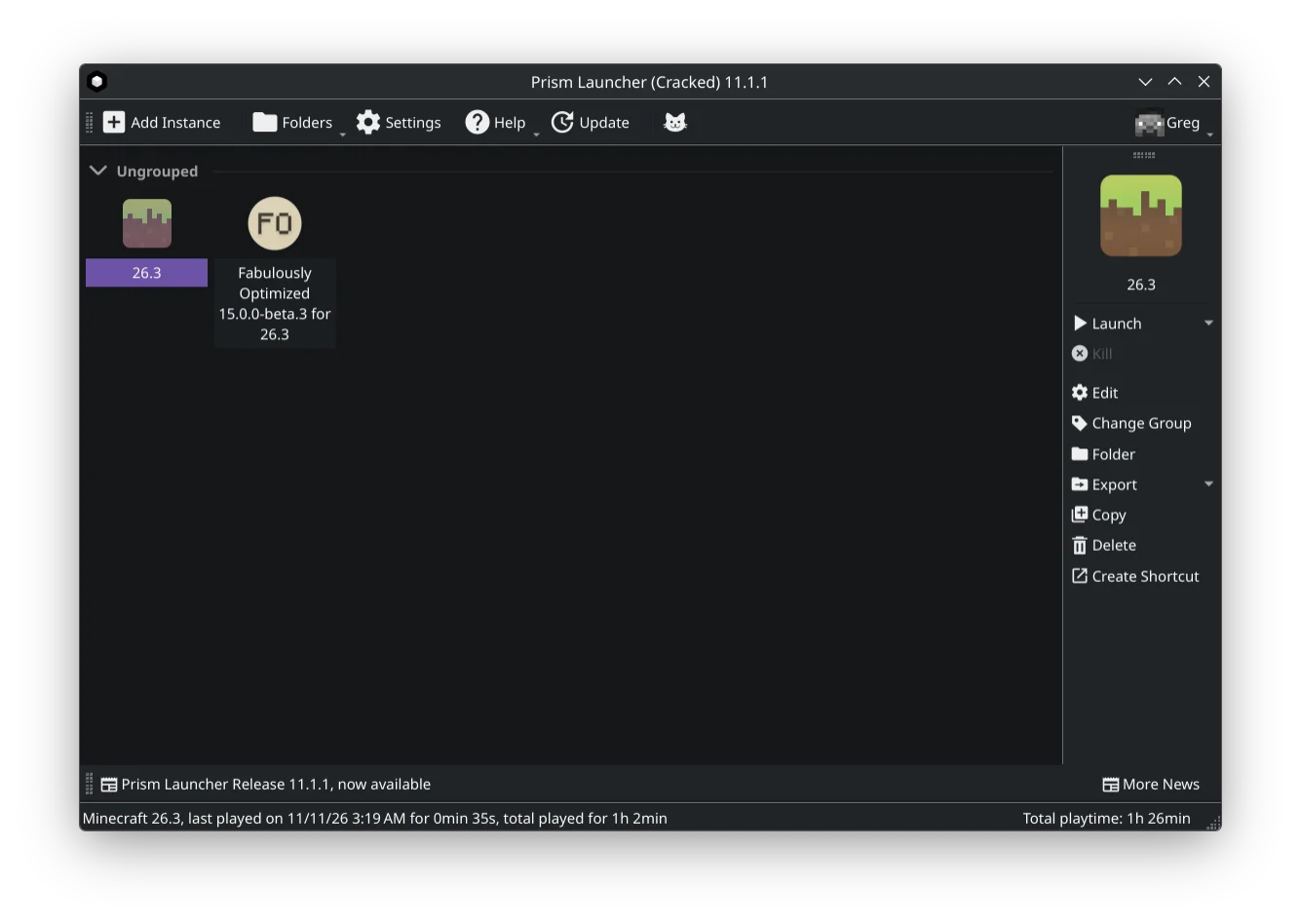
First, I installed the standard edition through Prism Launcher.
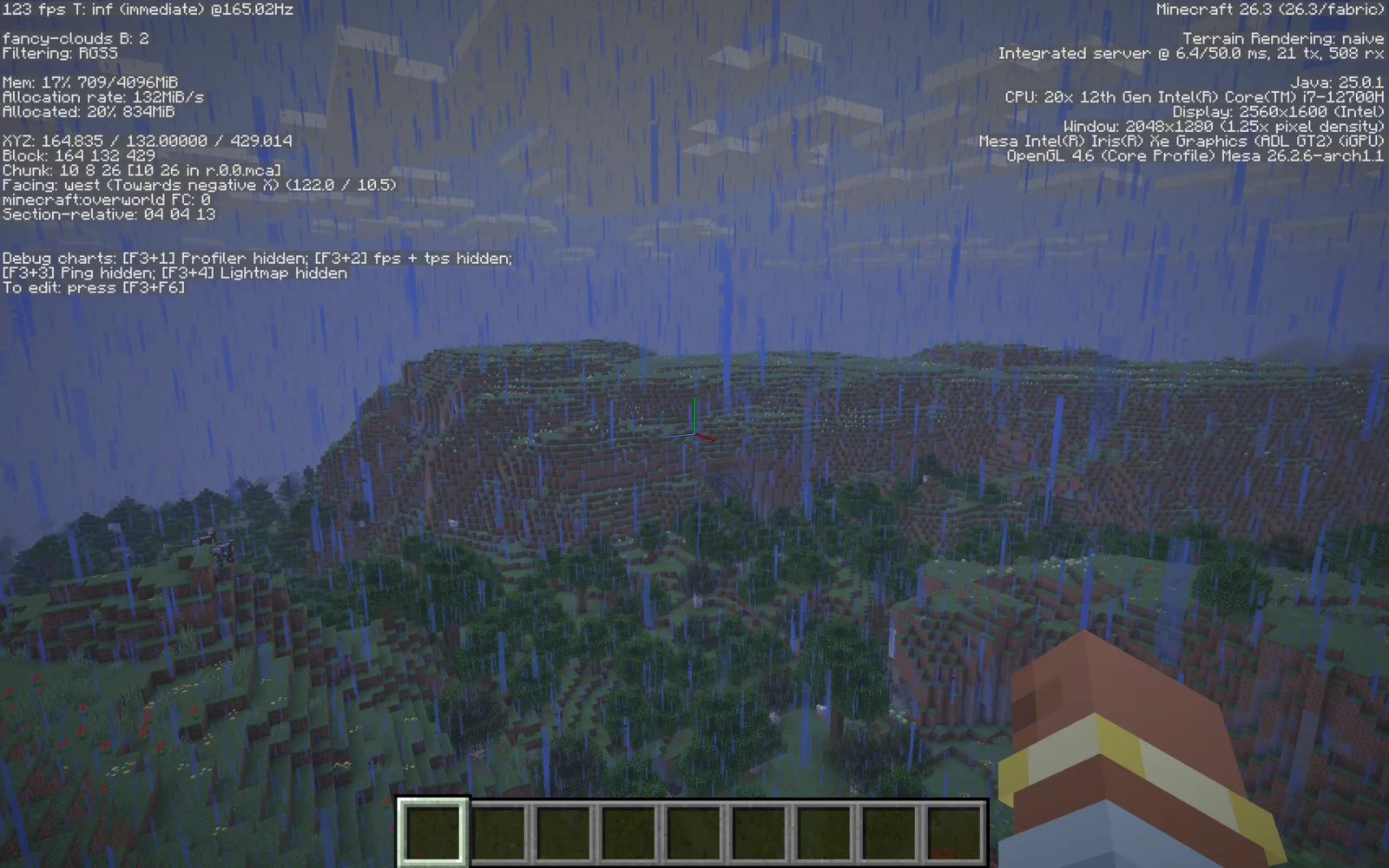
By default, it runs on OpenGL using the integrated Intel GPU and gives around 123 FPS at this spot.
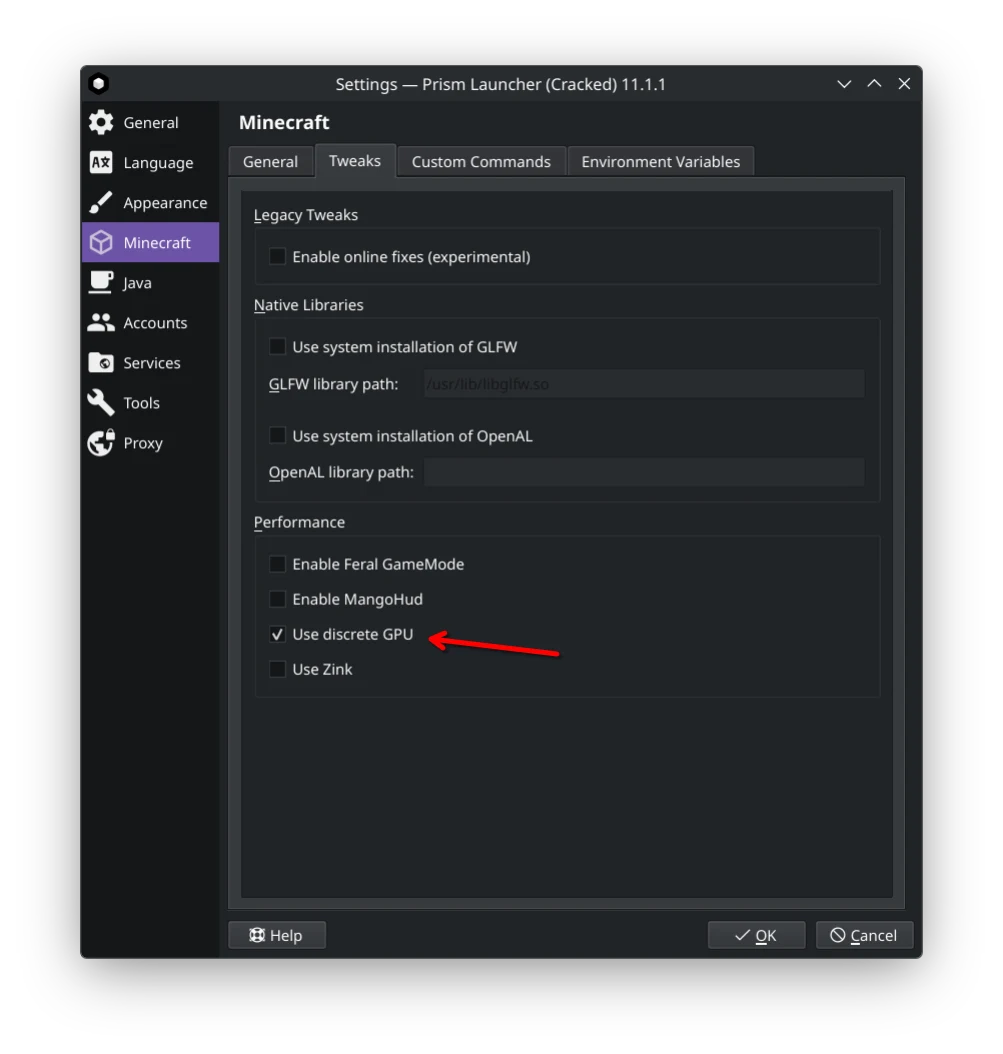
To make it use the dedicated GPU, I changed this setting in Prism Launcher:
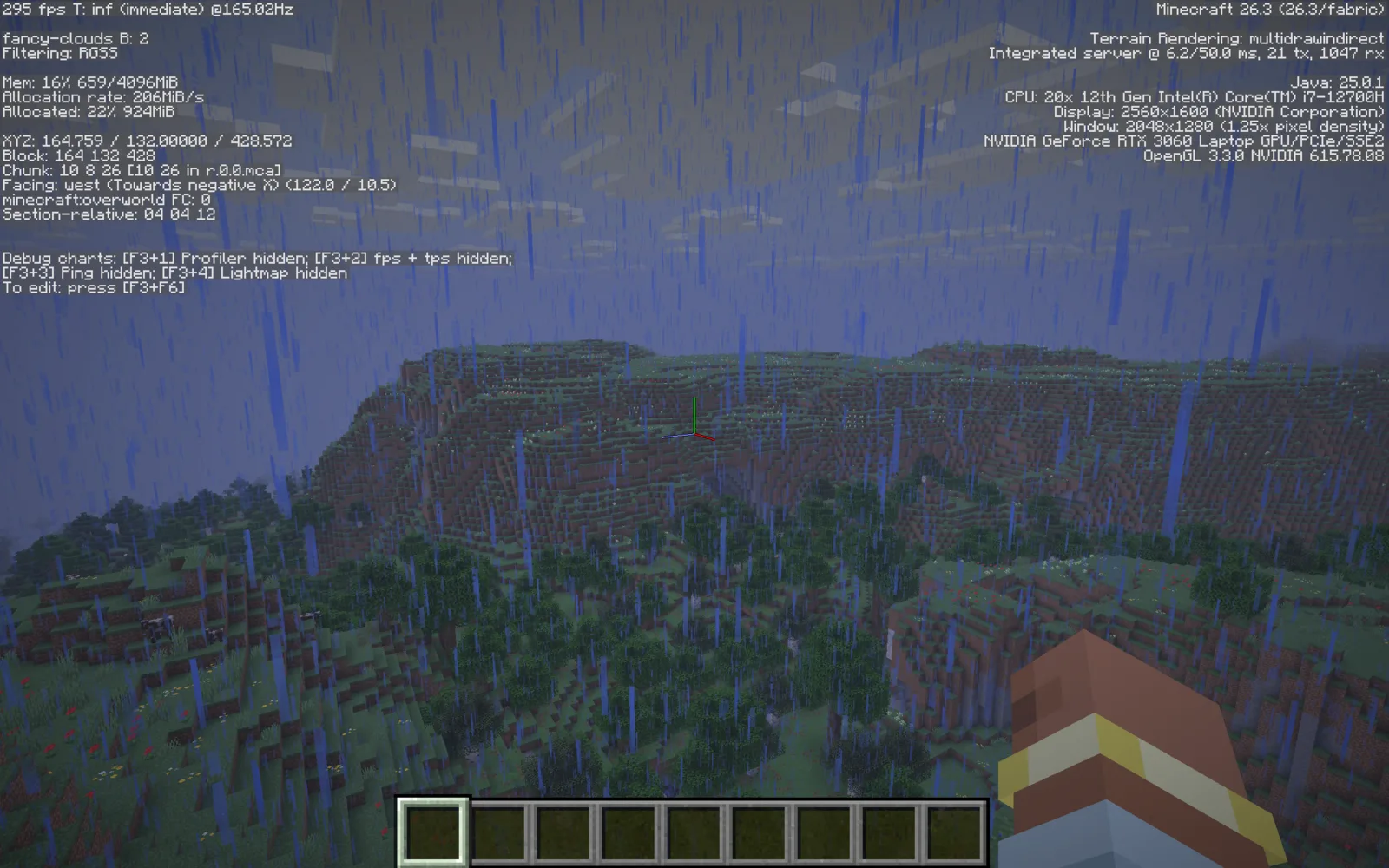
Now, with the Nvidia GPU, it runs at 295 FPS:
Standard Edition with Vulkan
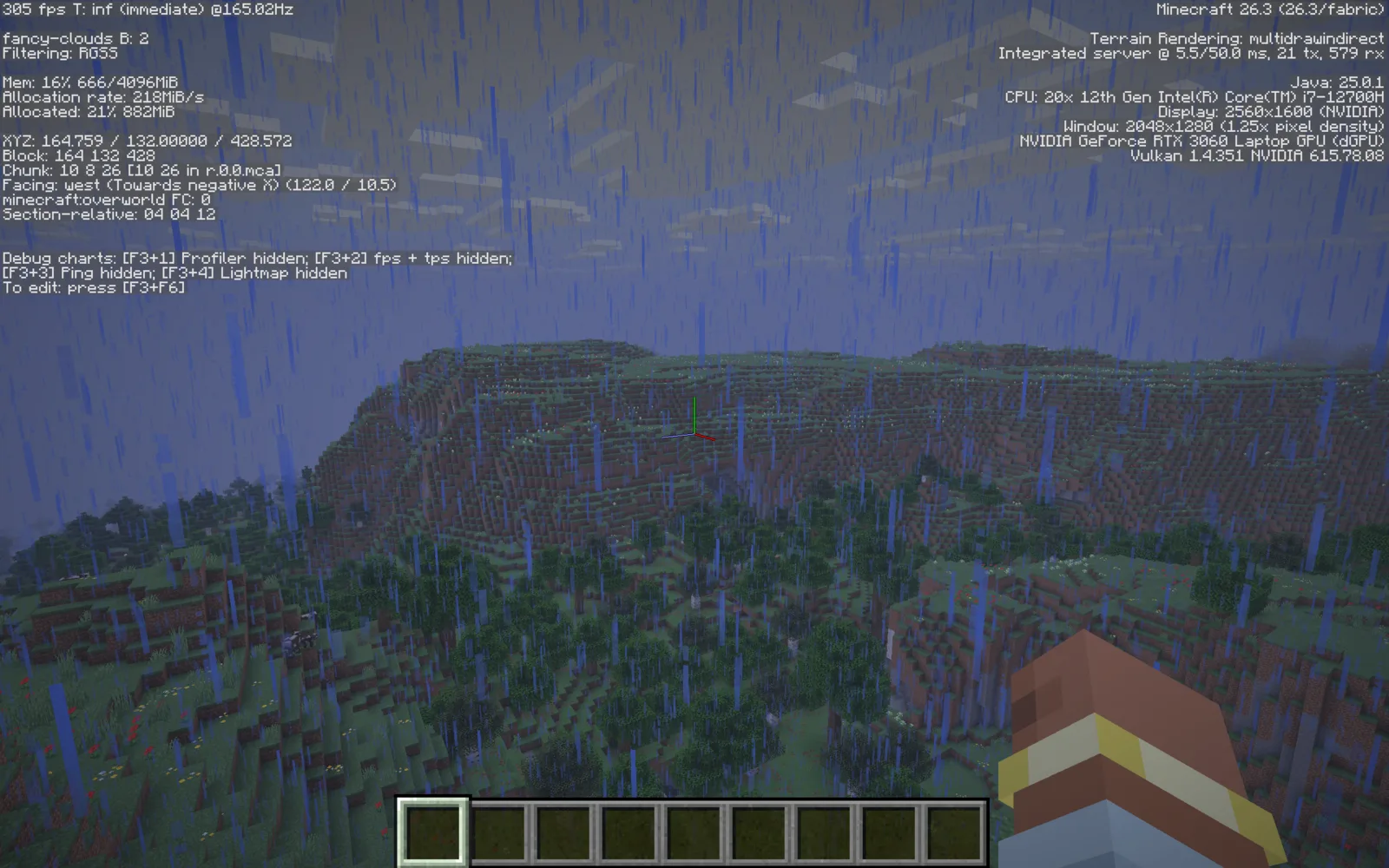
Switching from OpenGL to Vulkan gives a slight performance boost (305 FPS):
'Fabulously Optimized' modpack with OpenGL
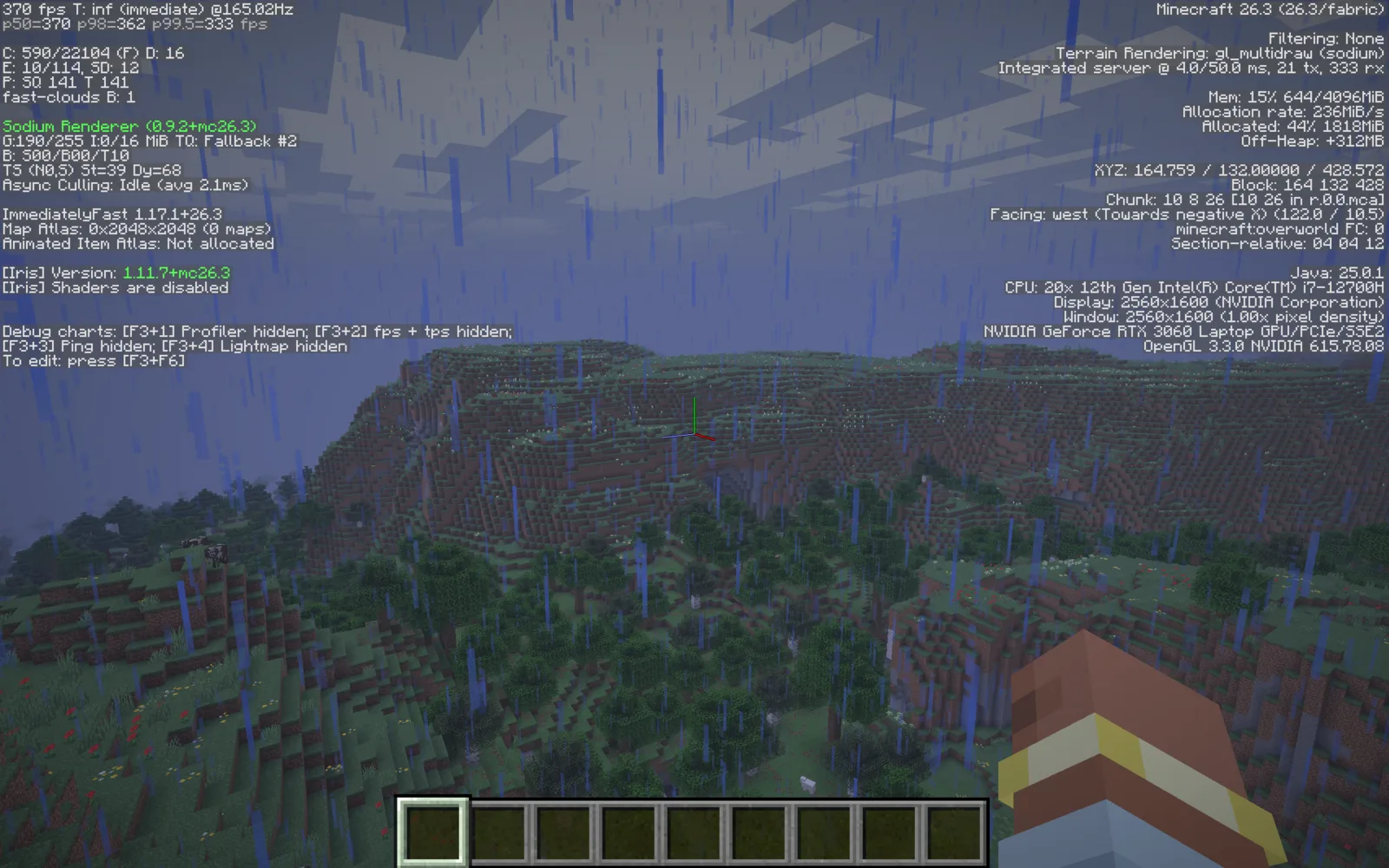
When you create a Minecraft instance in Prism Launcher, you can pick from various ready-made builds. I picked the Fabulously Optimized one, which was first in the list. Running the same world in this instance gives a huge boost in FPS compared to the vanilla version (1.25×, 370 FPS).
'Fabulously Optimized' modpack with Vulkan
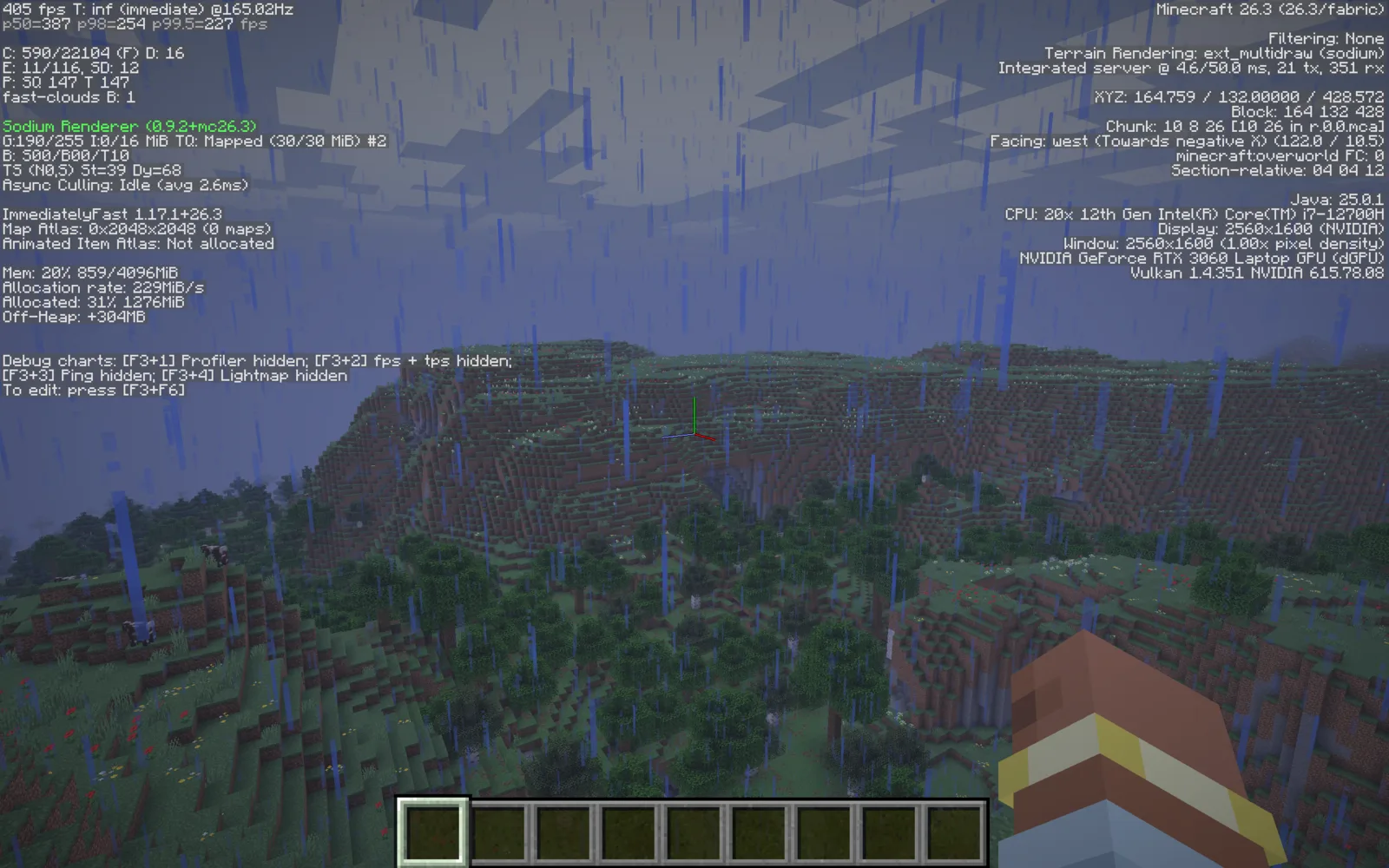
Switching to Vulkan raises the FPS of the modded instance even further: 405 FPS at the same spot.
Results
| Version | OpenGL | Vulkan |
|---|---|---|
| Vanilla (integrated GPU) | 123 FPS (42%) | - |
| Vanilla (dedicated GPU) | 295 FPS (100%) | 305 FPS (103%) |
| Fabulously Optimized | 370 FPS (125%) | 405 FPS (137%) |
'FPS modpack' modpack
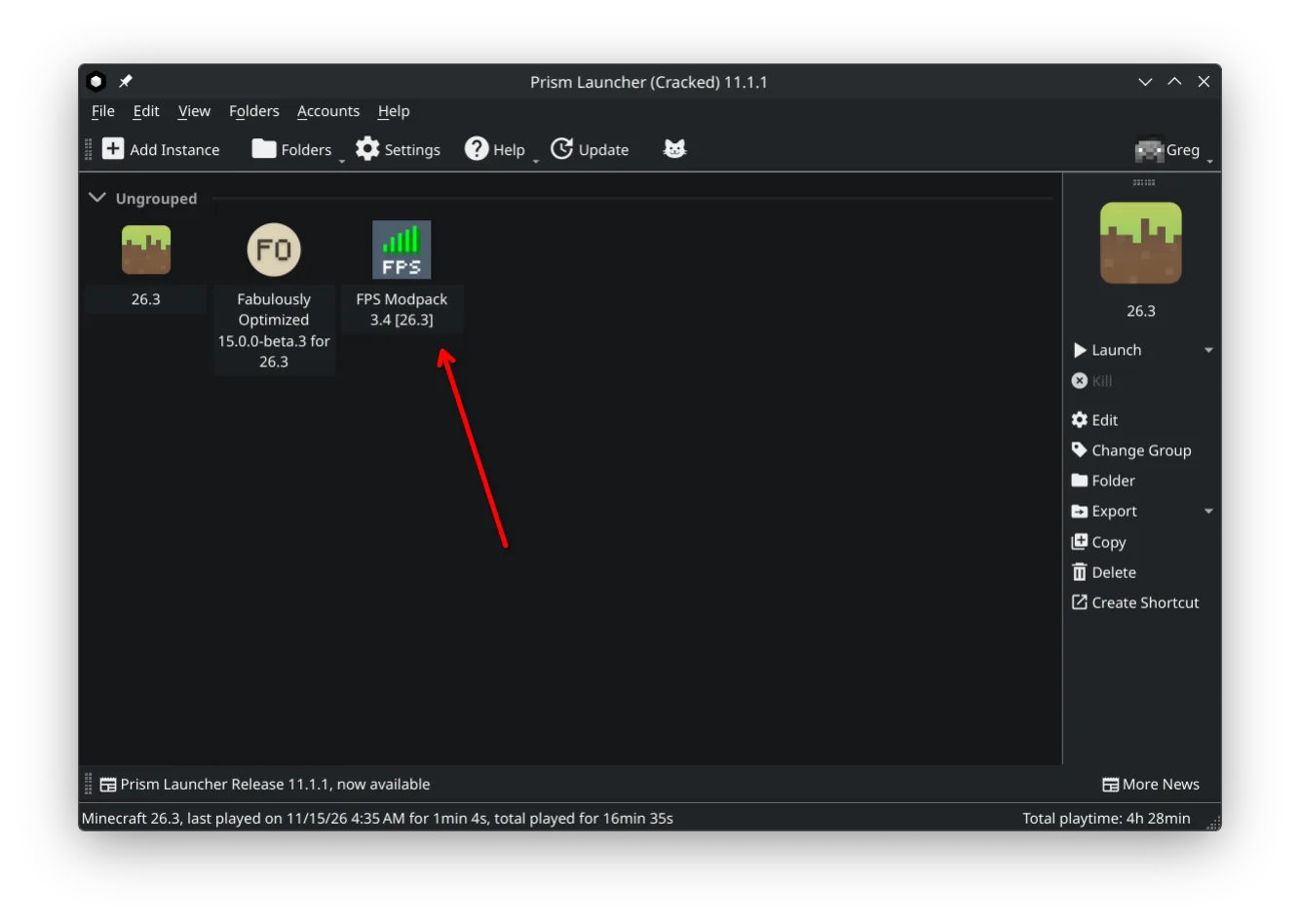
After trying various modpacks, I found one that gives an even better performance boost than Fabulously Optimized does, called FPS modpack. It achieves this similarly (by using Sodium, Lithium, and similar mods), but it also completely removes shader support.
Switching from Wayland to X11
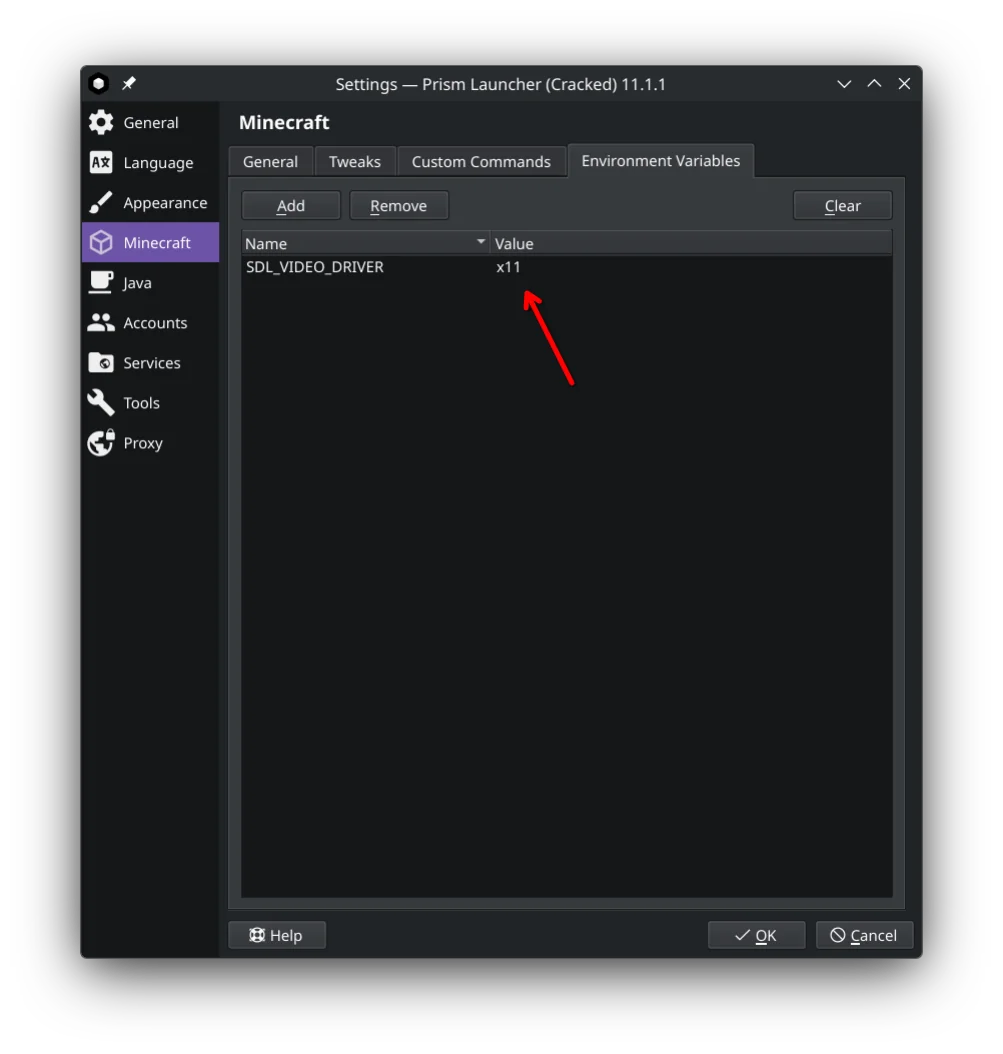
All previous tests were held on Wayland. Switching to X11 somehow improved performance drastically (almost 75% more FPS). I tested it on other distributions, and switching from Wayland to X11 improved performance there as well (by the same margin). XLibre (a fork of X11) has a slightly better performance.
Again vanilla but with custom settings
I decided to achieve what performance modpacks do, but manually in the vanilla version. I switched the graphics preset from 'Fancy' to 'Fast,' then reverted some of the settings back to their 'Fancy' values: Render Distance to 16 Chunks, Simulation Distance to 12 Chunks, and Smooth Lighting to ON. This increased my FPS up to 720, which is very similar to what it was with FPS modpack.
All the results
Because I tested FPS modpack and the X11 display server later, I had already lost that location in my Minecraft world where I conducted the previous tests. Therefore, to get fair results, I tested everything again (except for the 'Fabulously Optimized' modpack) in a new spot. Here are the updated results:
| Version | OpenGL | Vulkan |
|---|---|---|
| Vanilla (integrated GPU) | 105 FPS (34%) | - |
| Vanilla (dedicated GPU) | 305 FPS (100%) | 328 FPS (108%) |
| Vanilla X11 | 485 FPS (159%) | 485 FPS (159%) |
| FPS modpack | 402 FPS (132%) | 430 FPS (141%) |
| FPS modpack X11 | 760 FPS (249%) | 760 FPS (249%) |
| FPS modpack XLibre | 770 FPS (252%) | 770 FPS (252%) |
| Vanilla Custom Settings XLibre | 720 FPS (236%) | 720 FPS (236%) |
Ultimately, the biggest performance boosters were switching to X11/Xlibre and using custom settings in the vanilla version.
Can it be improved even further?
So far, all of this has been with the standard Java Edition. Lately, Horizon — a new unofficial launcher written in Rust — has appeared, but in my experience it runs worse than the Java Edition; the only real benefit is almost instant world loading.
How did I sync the worlds between instances?
You may wonder how I tested the same world at the same spot in two different Minecraft instances. If you right-click a Minecraft instance in Prism Launcher, you can open its folder by choosing 'Folder' in the context menu. Then go to /minecraft/saves and copy your world to the same location in the other instance. However, this copies the world only once, so it won't stay in sync between the instances. To keep it in sync, you don't need to copy the save each time you switch instances: just create a symlink to that save in the other instance's saves folder. You then keep a single save in one instance, and the other instances use it through the symlink.